Setting up a dashboard for HA2ATV
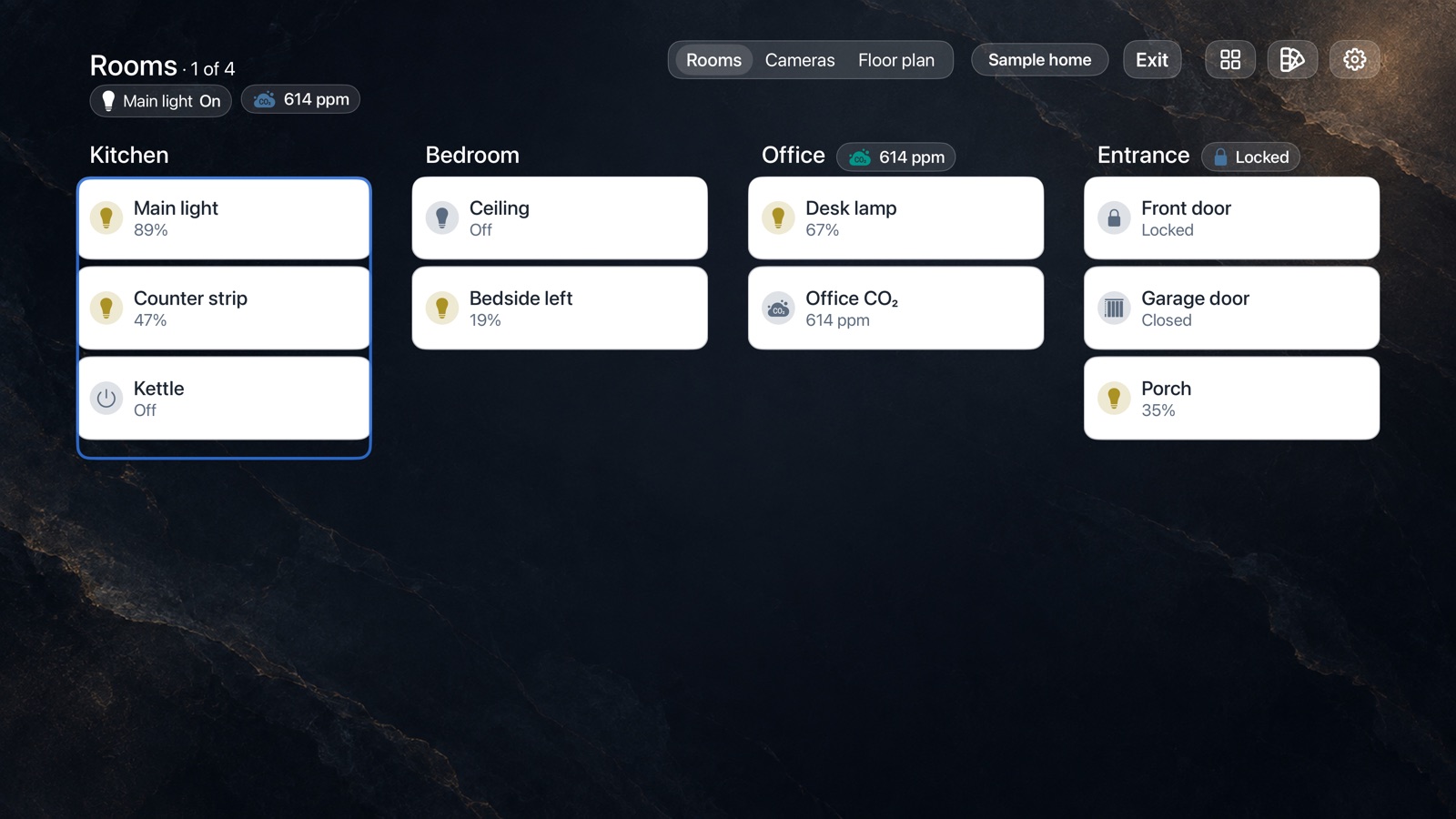
HA2ATV imports your dashboard and renders each view’s cards natively. Some cards and settings have no TV equivalent. The first section lists the changes that give the closest match; the rest is a reference.
In HA2ATV means the app’s own Settings on your Apple TV. In Home Assistant means Home Assistant’s Settings, in a browser or the Home Assistant app.
Tune your dashboard in Home Assistant
These changes apply wherever you use the dashboard. To leave your everyday dashboard as it is, make one for the TV: in Home Assistant, go to Settings › Dashboards and select Add dashboard.
To edit a dashboard, open it and select Edit dashboard (the pencil, top right). Select Save after each change and Done when you finish. HA2ATV picks up the saved dashboard within seconds.
- See what needs fixing. In HA2ATV, open Settings › Dashboards › What didn’t come across. It lists each card that looks different on the TV, and why.
- Start from a dashboard you can edit. An Overview you have never edited is built by Home Assistant, and HA2ATV shows one view per area. Select Edit dashboard, then Take control, to edit it. New devices are then no longer added for you.
- Put the views you want first. HA2ATV shows only the first views; how many depends on your Apple TV (see Views). In edit mode, select a view’s tab and use the arrows beside its name (Move view left) to bring it to the front.
- Set each view’s layout to Sections. HA2ATV shows each section as a column. Select the pencil beside the view’s name (Edit view) and, under Settings, set Layout to Sections. If the view uses another layout, Home Assistant offers Convert, which puts all its cards into one section called Imported cards. Select Create section to add more sections, and drag cards between them.
- Keep to 4 columns. The TV shows at most 4 columns. In Edit view › Settings, set Max number of sections wide to 4 or fewer. A section with a Width of 2 (Edit section › Settings) takes two of those columns.
- Start each section with a Heading card. If a section has none, select Add card › Heading and drag it to the top of the section. Its text becomes the column’s title on the TV, and any badges on it sit beside the title. Heading icons and subtitles are not shown.
- Set a tap action on every interactive card. On each card that should do something, set Tap behavior in the card’s editor, for example to Toggle or More info. Only
tap_actionruns; if a card relies on Hold behavior or Double tap behavior, set that action under Tap behavior instead. See The Siri Remote. - Keep names short. Long names are cut off on the TV. Set a short Name in the card’s editor: Kitchen rather than Kitchen Ceiling Lights Main.
- Use pictures saved in Home Assistant. Upload the picture in the card’s editor, or copy it to
/config/wwwand reference it as/local/your-image.jpg. See Pictures and cameras for formats and limits. - Check again. Open What didn’t come across once more. Anything still listed there says why.
HA2ATV terms
- Page: one screen on the TV. A view with more cards than fit on one screen continues on further pages. If Navigation is set to Scroll, the pages join into one long page that scrolls.
- Condition: a Conditional card’s conditions, or a card’s or section’s Visibility settings (
visibilityin YAML).
Choosing a dashboard
- Sign in as an administrator. Other users can’t open dashboards set to Admin-only.
- Your default dashboard is listed as Overview, whatever you named it in Home Assistant.
- List order. The dashboard you’re on, then recently opened ones, newest first, then the rest alphabetically. A dashboard hidden from Home Assistant’s sidebar still appears.
- Opens on. In HA2ATV, Settings › Dashboards › Opens on sets the dashboard the app starts on.
- The automatic Overview, which Home Assistant makes from your areas until you edit Overview, is rebuilt each time the app starts, with one view per area, so only your first 3 to 6 areas appear. For full control, use Take control (step 2) or make a new dashboard.
- Views hidden from some users still appear. HA2ATV ignores a view’s Visibility setting and treats user conditions as met.
Views
HA2ATV shows only the first views in a dashboard, and how many depends on your Apple TV. Later views are skipped without a message, so put the ones you want first. To check your model, open the Apple TV’s own Settings › General › About.
| Apple TV | Views | Cards on a page | Live cameras on a page |
|---|---|---|---|
| Apple TV 4K (3rd generation) | 6 | 24 | 4 |
| Apple TV 4K (2nd generation) | 5 | 16 | 3 |
| Apple TV 4K (1st generation) | 4 | 12 | 2 |
| Apple TV HD | 3 | 10 | 2 |
- Long views continue. Cards beyond one page continue on the next, up to 13 pages in a view.
- Empty views are skipped. A view with nothing HA2ATV can show takes no page and doesn’t count toward the limit.
- Name every view, briefly. The title becomes the tab name on the TV, and long titles are shortened. An untitled view is shown as View 2, View 3 and so on. View icons are not used.
- Subviews and pop-ups (such as Bubble Card pop-ups) open as sliding panels when a card on a page links to them, up to 8 in a dashboard. Anything in a panel beyond one page is not shown.
- Badges at the top of a view carry over as a row of small labels, up to 24 in a view.
Layout
Use the Sections view type. Each section becomes a column on the TV, titled by its Heading card (step 6).
| View type | On the TV |
|---|---|
| Sections | Each section is a column, or wider if it spans more than one. Up to 4 columns side by side; sections that don’t fit move to the next page. |
| Masonry | Cards are arranged in up to 3 columns, and a stack stays together. |
| Panel | Only the first card is shown, filling the page. A horizontal stack, or a grid of 2 to 4 columns, keeps its columns. |
| Sidebar | Main cards take three quarters of the width, and sidebar cards the rest. |
| layout-card views | Follow the layout-card grid, up to 4 columns. |
- Section width follows its column span. A section can span 1 to 4 columns.
- Card width is approximate. A card width of 7 to 12 (of 12) fills its section, and 6 or less takes half. In a section 4 columns wide, a width of 4 or less takes about a quarter. Card height of 1 to 6 rows is followed more closely.
- Keep every card inside a section. A card placed outside the sections in YAML is not shown (Home Assistant doesn’t show it either).
- Similar cards may be combined. Runs of small tiles, lights or buttons may be merged to fit the TV. Cards with a condition or a slider stay separate.
- Changing the columns. In HA2ATV, open Settings › Appearance and layout. Columns can follow Home Assistant (Match Home Assistant), fit the screen (Fit to screen), or be set to 2, 3 or 4. Navigation sets whether you move from page to page (Pages) or scroll (Scroll).
Cards
Almost every built-in Home Assistant card has a matching card in HA2ATV. Most keep their entity and name; some display options are not carried over.
| Home Assistant card | In HA2ATV | Worth knowing |
|---|---|---|
| Alarm panel | Status and arm buttons | You can’t enter a code on the TV, so a panel that needs a code has no arm or disarm buttons. |
| Area | The area’s image, or a list of its entities | The list updates when you next save the dashboard in Home Assistant or restart the app. |
| Button, Entity | A tile or control suited to the device, such as a dimmer for a light | A Button card whose tap action is None shows as a read-only tile. |
| Calendar, To-do list | Calendar or to-do card | A Calendar card needs at least one calendar chosen. |
| Energy distribution, Energy usage graph, energy gauges | The same energy cards, for today only | Home Assistant’s Energy dashboard must be set up. Tables and per-device breakdowns are left out. |
| Entities, Glance | A list of entities | Up to 100 rows. Rows from custom cards HA2ATV doesn’t support are left out. |
| History graph, Statistics graph | A chart | The first 4 entities only. History covers up to 7 days, statistics up to 31 days. |
| Light, Thermostat, Humidifier | A card with that device’s full controls | Only the entity and name are used. |
| Map | A map image, updated every 30 seconds | Up to 12 person or device_tracker entities. Location history trails are not shown. |
| Markdown | Text card | Up to 4,096 characters, shown as plain text: formatting, images and tables are not shown. |
| Media control | Media player card | Needs a media player entity. |
| Picture elements | Floor plan with markers | Up to 48 markers. |
| Picture, Picture entity, Picture glance | Picture | See Pictures and cameras. |
| Plant status, Logbook | A simple list | The Logbook card shows each entity’s last change, not the full log. |
| Sensor, Gauge | A reading, or a gauge dial | Gauge range, needle and severity colors are kept. |
| Tile | Tile with its name, icon and state | Most tile features work, such as brightness sliders and mode selectors. Tile color is not used. |
| Weather forecast | Weather card | Forecast options are not used. |
| Webpage | Not shown | tvOS has no web view, so Webpage cards can’t be shown. |
Stacks and grids set the layout. Swipe, tab and expander cards show all their cards one after another. A card HA2ATV doesn’t recognize is shown as the nearest built-in card for the entities it lists, marked "Shown as the closest built-in card". If it lists no entities, it’s left out.
Custom cards
Only the listed settings carry over. Other custom cards are handled as described in Cards.
| Custom card | In HA2ATV | What carries over | What doesn’t |
|---|---|---|---|
| apexcharts-card | Chart | Up to 4 entities, up to 7 days, bars | Series whose data is worked out in JavaScript |
| auto-entities | A list of entities, up to 100 | Filters by domain, name, state, attribute and integration | Template filters. The list updates when you next save the dashboard or restart the app |
| bar-card | Bars, up to 24 | Range, color, severity, direction, height | Animation, value templates |
| big-slider-card | A slider that fills the card | Color, percentage, direction | Sliders for attributes |
| Bubble Card | Tiles, sliders and thermostats; pop-ups open as panels | Name, icon, attributes, up to 8 buttons in a button stack | Sub-buttons, double tap |
| button-card | A button with its name, icon and colors | Name, label, icon, colors, layout, state colors, shared templates | JavaScript, custom fields, most custom styles |
| Custom gauge cards | Gauge dial | Range and colored segments | Other styling |
| Custom thermostat, media, calendar, camera and weather cards | The matching HA2ATV card | The entity | Their own layouts and options |
| decluttering-card, streamline-card | The card they produce | Variables | Card templates that need Jinja or JavaScript |
| layout-card, stack-in-card, swipe and tab cards | Layout only | Columns and order | Hidden tabs and slides are shown one after another |
| mini-graph-card | A reading with a line, or a chart | Hours to show, line width, fill, line color | More than 4 entities |
| Mushroom cards | Tiles, sliders, and tiles with a second line of text | Name, icon, colors, tap action, and templates on Mushroom template cards | Controls with no TV equivalent |
| Mushroom chips and title | Labels at the top of the page, and section titles | Name, icon, color, conditions | Navigate and link chips are shown, but do nothing when selected |
Not shown: Webpage and HTML cards, ha-floorplan, auto-entities with a template filter, charts made entirely in JavaScript, and buttons that exist only through JavaScript.
card-mod styling carries over only for a card’s border, corner radius, solid background color and shadow. Gradients, theme variables, templates, and styles aimed at parts inside a card are ignored.
Templates and conditions
Templates (Jinja) work only in Markdown cards and in Mushroom template cards’ text, icon and color fields.
- Where they don’t work: button-card fields, bar-card fields, chart titles, and the data of an action. The field uses its default, or the button does nothing.
- JavaScript never runs. In button-card, anything between [[[ and ]]] is removed.
- If a template fails to render, the last good result stays and no error is shown. Test templates in Developer tools › Template first.
A card with a condition appears and disappears as things change, depending on the condition type:
| Condition | In HA2ATV |
|---|---|
| State, numeric state, and, or, not | Followed as things change |
| Screen size | Checked once, treating the TV as a screen 1920 pixels wide, so conditions for phone-sized screens are not met |
| User | Always treated as met |
| Time, location and any other type | Not evaluated, so the card always shows |
A condition on an entity HA2ATV can’t read hides the card. Numeric state conditions need literal above and below values, not entity references. An Entity Filter card shows all its entities: its filter is not applied.
The Siri Remote
Selecting a card with the Siri Remote (pressing the center of the clickpad) runs its tap_action. Hold and double tap actions don’t run, so give every card that does something a tap action (step 7).
| Tap action | In HA2ATV |
|---|---|
| Toggle, More info | The card’s own control, or its details |
| None | Nothing happens |
| Perform action | Runs, if its target and data contain no templates |
| Navigate | Moves to another view, subview or pop-up in the same dashboard. A link to another dashboard does nothing |
| URL, Assist | Not available |
HA2ATV always asks "Are you sure?" before it unlocks a lock, disarms an alarm, opens a garage door or gate, opens a valve, or restarts Home Assistant. These questions can’t be turned off. Locking, closing an ordinary cover and arming an alarm don’t ask.
- Name matching. A
switch,buttonorinput_buttonwhose name or entity ID contains the whole word garage, gate, door or lock (or a compound such as frontdoor or garagedoor) also asks first: these are often relays with no device class to say they move a door. Doorbell, Gateway and Clock don’t count. - Your own confirmations. If a card’s tap action has Confirmation turned on in Home Assistant, HA2ATV asks too, with your message if it is plain text.
- Actions on many devices ask first, such as an action that targets every device or a whole area.
Pictures and cameras
A picture appears only if it is stored on the Home Assistant you signed in to (step 9). Pictures from other websites, and from Home Assistant’s Media browser, are not shown.
- Formats: JPEG, PNG, WebP and HEIC. SVG is not supported.
- Size: up to 8 MB. Pictures are reduced to 2,048 pixels on the long side.
- Pictures written into the dashboard’s YAML as data, rather than as a file, work up to 2 MB.
- View backgrounds follow the same rules. Background colors and gradients work too.
- Cameras show live video where they can, or a still picture refreshed every few seconds. Cameras beyond a page’s limit (see the Views table) show a still picture.
Theme and look
Your Home Assistant theme carries over, including its colors, card corners, borders and shadows. HA2ATV adjusts any color that would be hard to read across the room.
- Light or dark: Home Assistant stores the light or dark mode choice per browser, not on the server, so HA2ATV uses the theme’s light mode unless the theme defines dark only. To use dark, select a dark look in HA2ATV’s Settings › Appearance and layout.
- Fonts: web fonts are not loaded. HA2ATV uses whichever of its four styles is closest to the theme’s font: standard, serif, rounded or monospaced.
- Text size: HA2ATV sets its own sizes so everything reads at a distance. To change them, open Settings › Appearance and layout › Text size, which applies to every dashboard on that Apple TV.
- Icons: most Material Design icons (mdi:) are shown as the closest Apple icon. Less common ones, and most custom icon sets, show the device type’s icon or a plain circle.
- Names are one line and long names are cut off (step 8). A name set on the card is used over the entity’s name.
- Units are shown as Home Assistant sends them.
Each dashboard can also have its own background (a color or a picture, used instead of the view background from Home Assistant) and its own card style (a fill color, Glass for a frosted-glass look, or Shadow). Card colors stay as they are unless you select a fill. Choose them with the Appearance and layout button at the top right of the dashboard; Settings › Default appearance sets what every dashboard uses until you give it its own.
After you change something
The TV updates by itself, and you stay on the same page.
| What changed | When the TV shows it |
|---|---|
| The dashboard, after you save it | Within seconds |
| Device states and readings | Within 30 seconds, or about a second after you select a card on the TV |
| Template text | As it changes, while that page is on screen |
| auto-entities lists and Area cards | When you next save the dashboard or restart the app, not when devices change |
| The automatic Overview | The next time the app starts |
To update a list after adding devices, save any small change to the dashboard, or restart the app.
A new version of the dashboard waits while a confirmation, a details panel or a pop-up is open, so nothing moves while you use it. If HA2ATV can’t reach Home Assistant, the last version stays on screen with "Reconnecting…".
Your HA2ATV appearance is kept. The background, card style, text size, columns and navigation you choose in HA2ATV’s Appearance and layout belong to the dashboard’s URL, so they stay when you edit the dashboard in Home Assistant. Changing the dashboard’s URL, or deleting it, starts it over with your default appearance.
To go back to the imported appearance, open Appearance and layout on that dashboard and set Background, Cards and Columns to Match Home Assistant.
When something doesn’t look right
In HA2ATV, open Settings › Dashboards › What didn’t come across. It shows each Home Assistant view next to its page on the TV, with the reason for every card that changed. Views beyond your Apple TV’s limit are not listed, so if a whole view is missing, see Views.
| Label on a card | What it means |
|---|---|
| Simplified | Shown more simply, with the reason underneath |
| Grouped with others | Combined with similar cards |
| Became a title | Now a section title |
| Became badges | Now labels at the top of the page |
| Became a pop-up | Opens as a panel |
| Became a Floor plan | Shown as a picture with markers |
| Dimmed, with a dashed outline | Not supported, with the reason underneath |
| Message on the TV | What to do |
|---|---|
| This account can’t list dashboards. | Sign in again with an administrator account. |
| Home Assistant didn’t let this app read that dashboard. | The dashboard may be Admin-only. Sign in as an administrator, or in Home Assistant’s Settings › Dashboards, open the dashboard and turn Admin-only off. |
| Couldn’t reach Home Assistant. | Check that Home Assistant is running, and that the address is right. |
| This dashboard is larger than this Apple TV can show. | Move some views or cards to another dashboard. The limit is 20,000 cards, counting each card inside a stack. |
| This dashboard couldn’t be saved on this Apple TV. | Move some views or cards to another dashboard, or remove repeated cards. |
| Nothing on this dashboard can be shown on an Apple TV. | Use cards from the tables above. |
| This dashboard couldn’t be read. | Check that it opens in Home Assistant, then try again. |
Still stuck? See the HA2ATV support page, or write to info@nomi-digital.com.au and say which card or view does not look right.